
Work offline with your documents
Mark the documents you need on the road, and M-Client keeps a copy on your Mac. Without a connection to the M-Files server you can still open and edit them, change their metadata and create new documents. Your changes go to the vault the next time you log in.
Mark documents for offline use
- Right-click a document, a selection of documents, or a view or folder.
- Choose Offline Access ▸ Mark for Offline Availability.
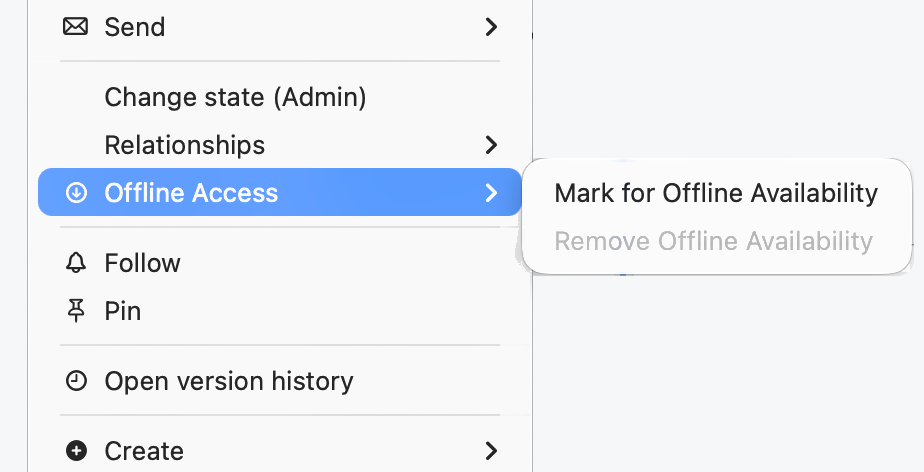
M-Client downloads the documents right after you mark them, then every 30 minutes and when you log out, so the copies on your Mac stay up to date. A marked view or folder keeps its documents and subfolders offline, up to 8 levels and 5,000 documents. Documents added to it later come in at the next download. To stop, choose Offline Access ▸ Remove Offline Availability.
Go offline
- When M-Client cannot reach the M-Files server at login, it says Can't reach the M-Files server and offers to work with the documents you marked. Click Work Offline.
- To go offline yourself, for example before a flight, choose Go offline in the user menu.
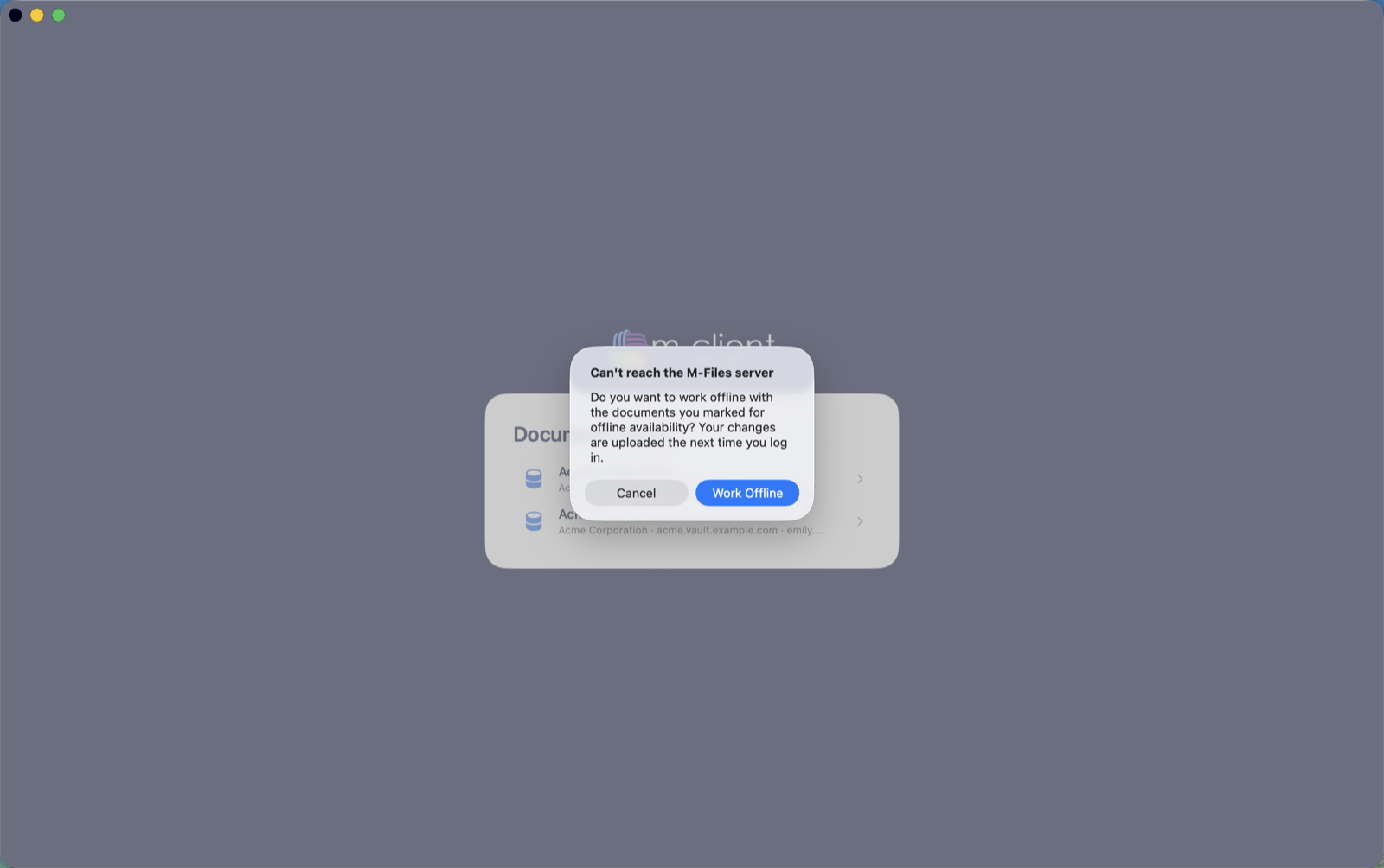
M-Client opens your offline documents only after you confirm with Touch ID or your Mac password. While you work offline, an orange Offline badge shows in the header and the Offline tab lists your documents. Go online and Close offline window are in the user menu.
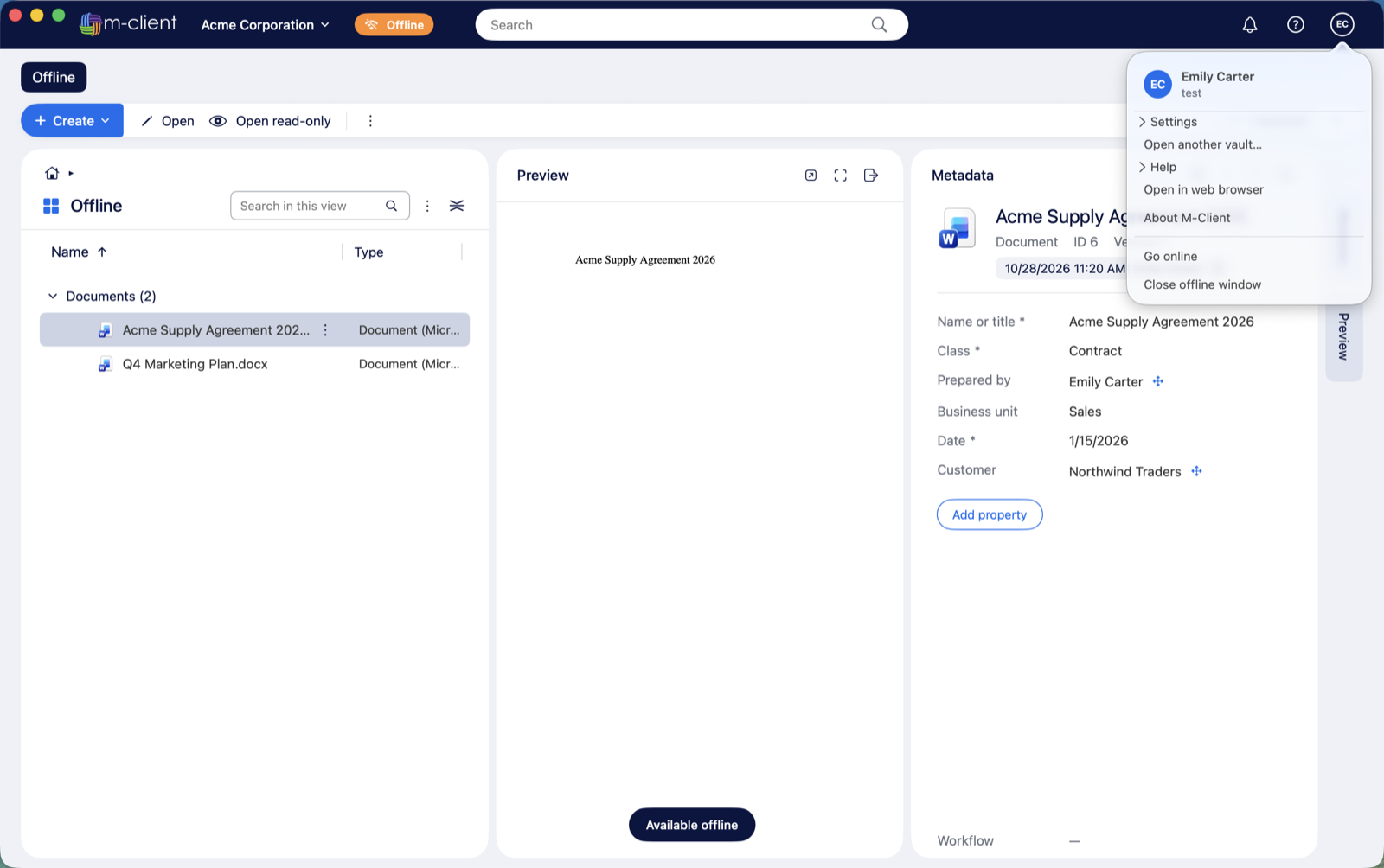
What you can do offline
- Open and edit the files of your offline documents.
- Edit their metadata cards.
- Create new documents, with a class, metadata and files.
Back online
Choose Go online in the user menu, or log in again once the server can be reached. M-Client uploads your work:
- New documents are created in the vault with the class, values and files you gave them.
- Edited documents are uploaded as a new version, but only if nobody changed the document on the server in the meantime.
If a document was changed on the server, or the server does not accept a document (for example because a required value is missing), nothing is uploaded for it. The document is listed under Not uploaded in the Offline tab. Once you are online, a banner at the top of its metadata pane says Your offline changes were not uploaded, with the reason.
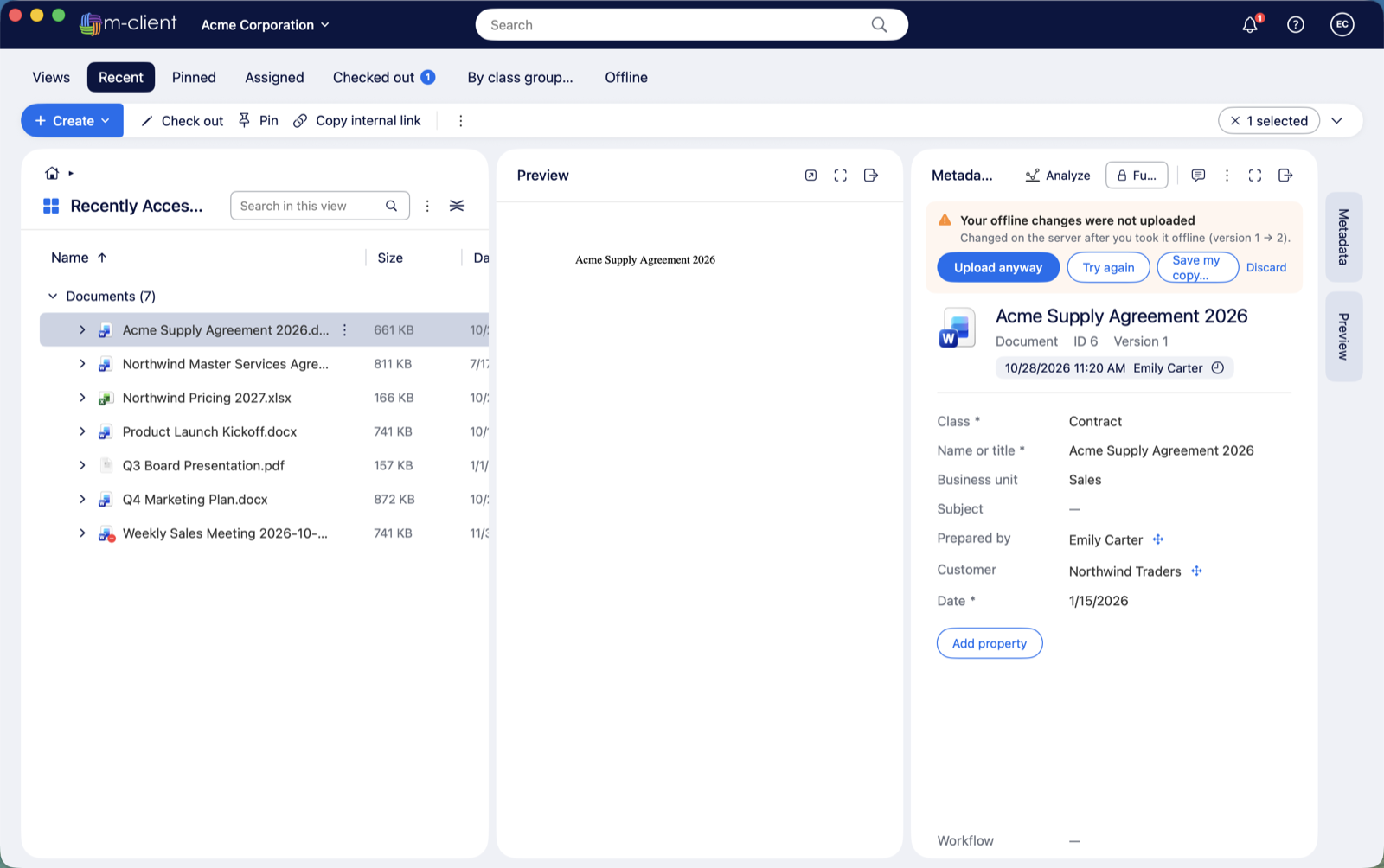
- Upload anyway saves your copy as the newest version.
- Discard drops your offline changes and keeps the server's version.
- Save my copy… saves your offline version of the files to a folder you pick, so you can merge the changes yourself.
For a new document the server refused, fix the metadata card and save it, or click Try again in the banner.
Security
Everything M-Client keeps for offline use is encrypted on your Mac with AES-256-GCM, with a key stored in your macOS keychain. Readable copies exist only while a document is open: they are removed when you close it, and previews and read-only copies are removed when you log out.