
Scan paper documents and make PDFs searchable
M-Client scans paper documents into a vault, like Add Document from Scanner in M-Files Desktop. M-Files Web has no scanning. The scanned pages become one PDF, and with OCR its text shows up in the preview and in M-Files search.
Before you start
Add your scanner to the Mac in System Settings ▸ Printers & Scanners. USB and network scanners both work.
Add a document from a scanner
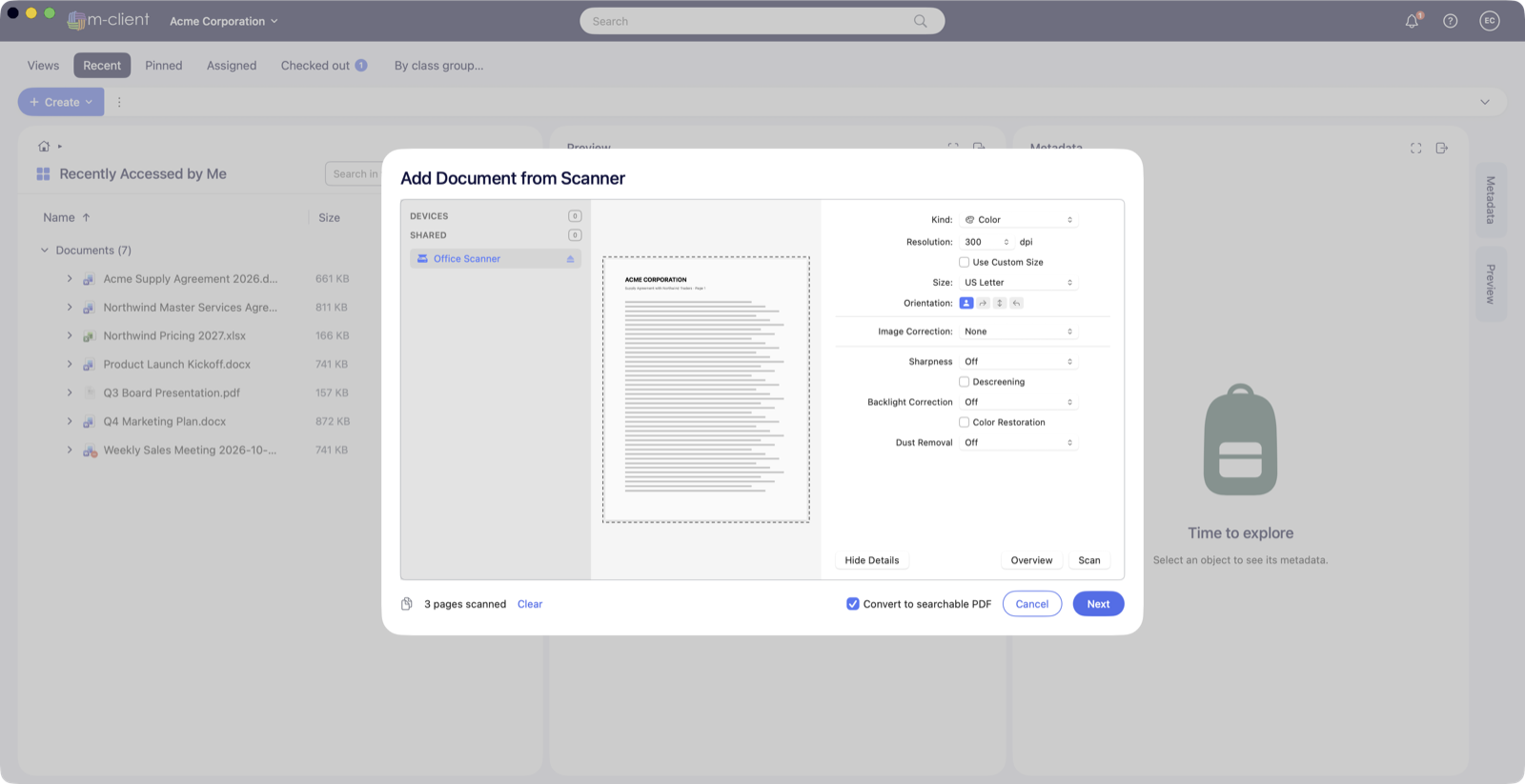
- In a view or folder, right-click an empty part of the listing and choose Scan and OCR ▸ Add Document from Scanner…. The command appears where you can create documents.
- In Add Document from Scanner, pick your scanner on the left. The scan panel on the right is the one from Image Capture and Preview.
- Check the settings. The resolution is 300 dpi, a good fit for reading and OCR. Change the paper size, color and other settings in the panel, or click Overview to preview the page and select the area to scan.
- Click Scan. Each scan adds one page, and the counter below shows the total, for example 3 pages scanned. For a document with several pages, click Scan again for each page: all pages go into one PDF. Clear starts over.
- Leave Convert to searchable PDF ticked to run OCR on the document. The option appears when the vault has OCR and allows PDF files.
- Click Next. The metadata card of the new document opens with the scanned PDF, named for example Scanned Document 2026-11-01 21.45.
- Choose a class, fill in the properties and, if needed, the permissions, then click Create. The document is created and checked in.
- With Convert to searchable PDF ticked, the language window opens next. Keep the default (English), let M-Files detect the language, or choose the languages yourself, then click Convert.
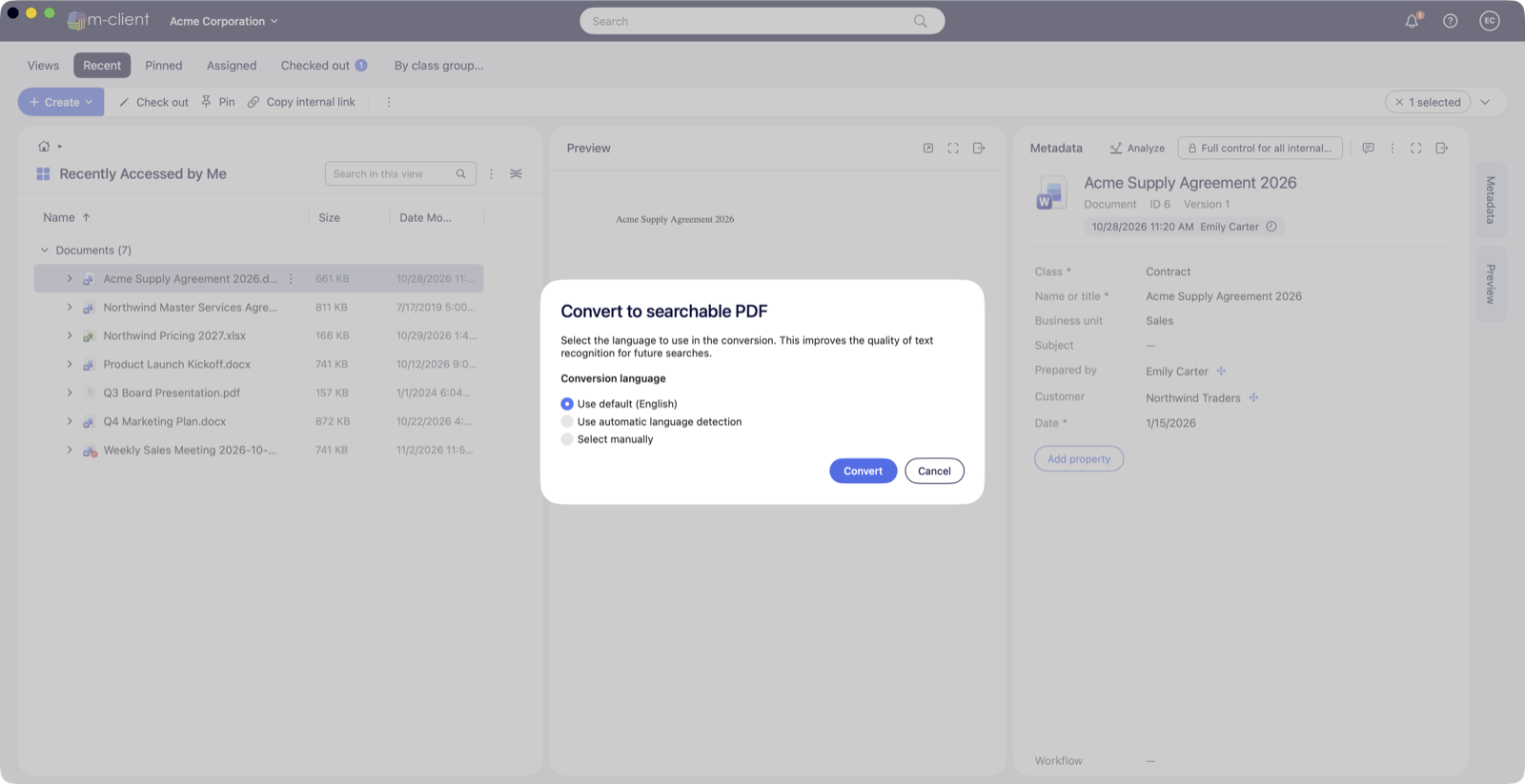
The server makes the PDF searchable and saves it as a new version of the document, rotating pages that were scanned upside down or sideways. The text then appears in the preview and in search results.
Make an existing document searchable
Right-click a document and choose Convert to searchable PDF, like in M-Files Web. In a multi-file document, right-click the file instead. The same language window opens; click Convert.