
Open, check out and check in documents
Editing works like M-Files on Windows: open, save, close, done.
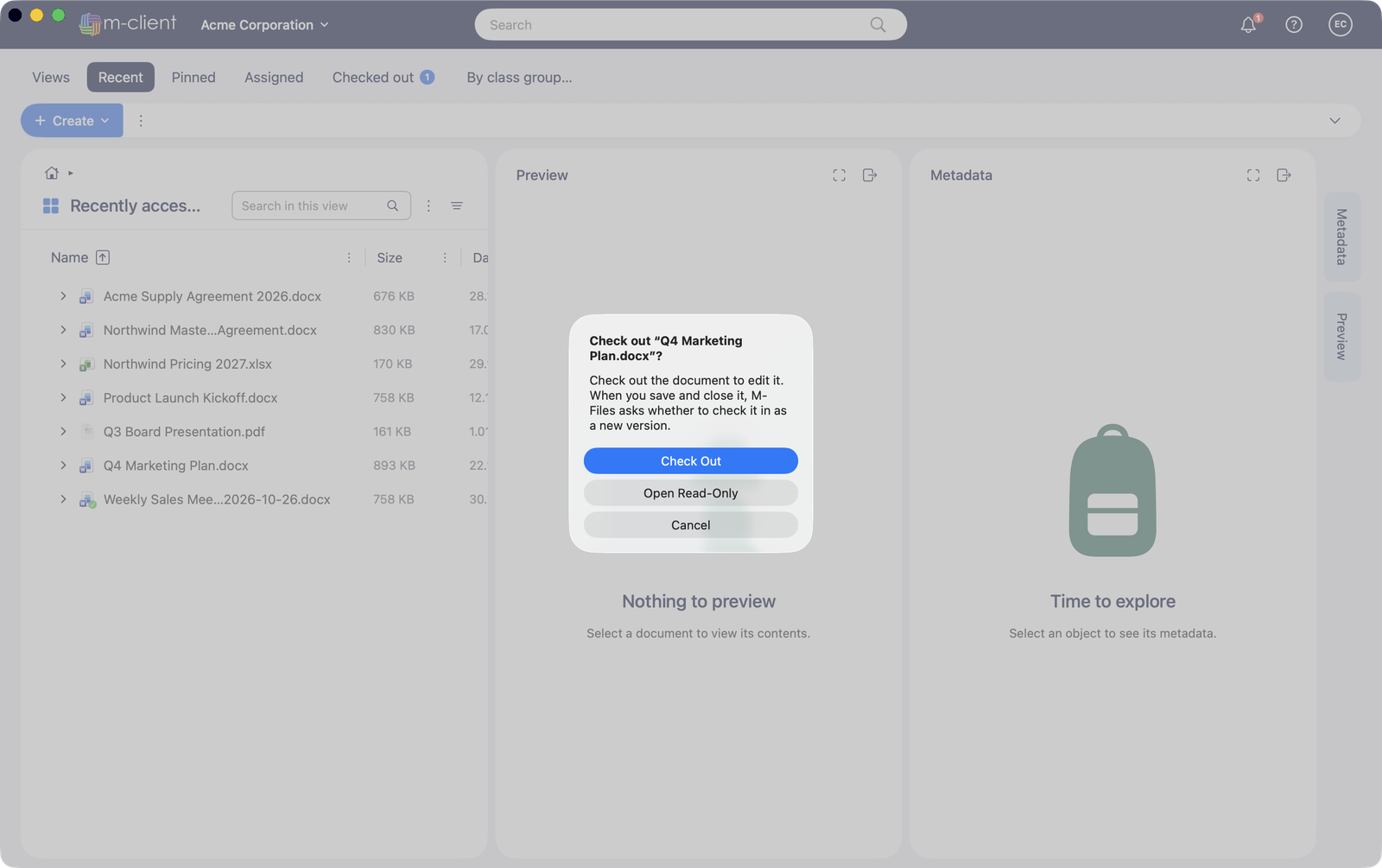
- Double-click a document. M-Client asks whether to Check Out it or Open Read-Only.
- With Check out, the document opens in its Mac app, for example Word, Excel, Pages or Preview. Other users see that you have it checked out.
- Edit and save as usual, then close the document.
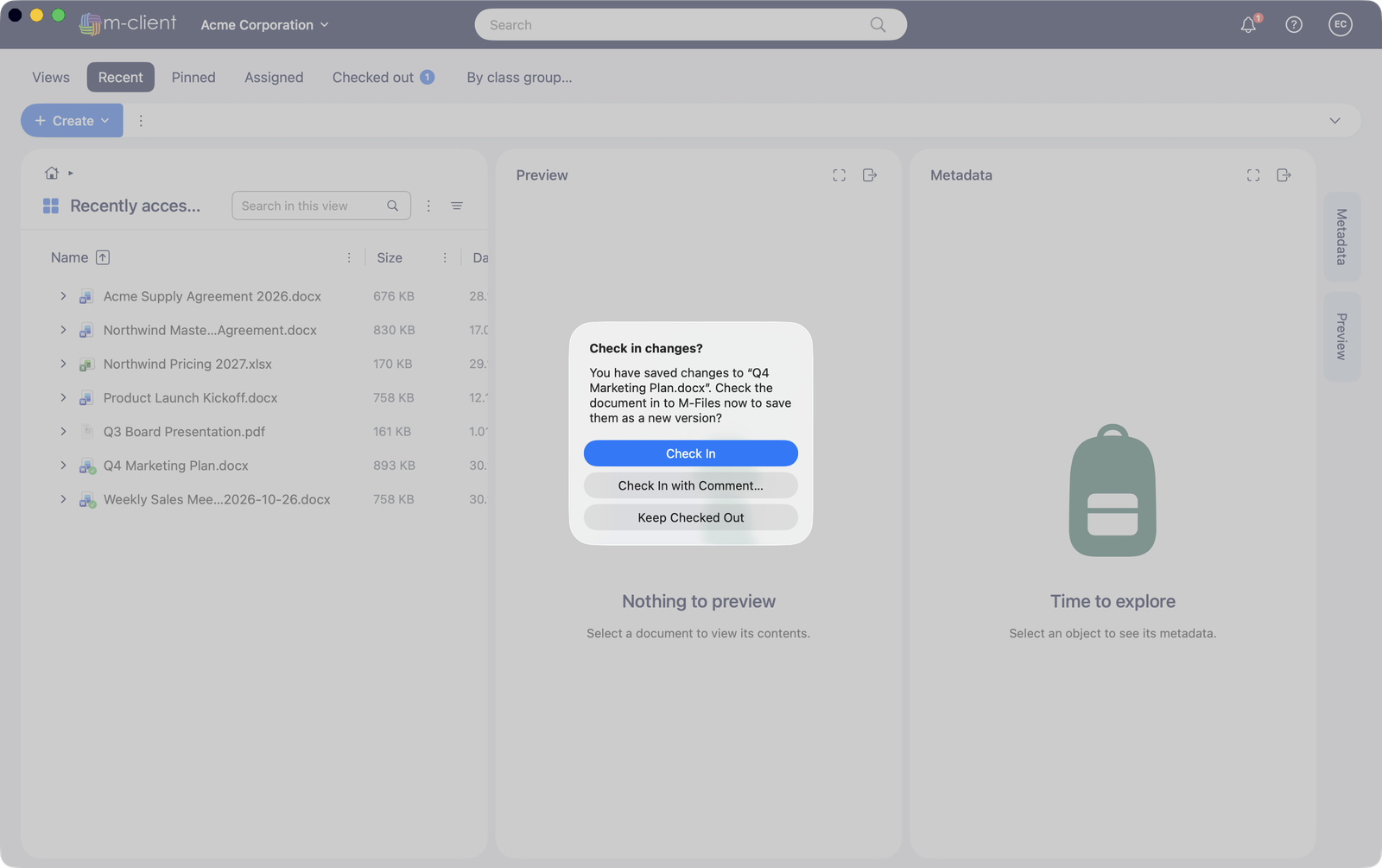
- M-Client asks Check in changes?. Choose Check In to upload a new version, Check In with Comment… to describe the change, or Keep Checked Out to go on editing later.
If you closed the document without changes, nothing is uploaded. You can also check in later, check in with a comment, or Undo checkout from the document's context menu.
A green check marks documents you have checked out; a red lock marks documents checked out by someone else. The bell in the header lists your checked-out documents.