
Notifications and the Dock badge
M-Client tells you about new work with macOS notifications, also while you work in another app.
Choose your notifications
Open M-Client ▸ Settings… (⌘,) ▸ General ▸ Notifications. All options are on by default.
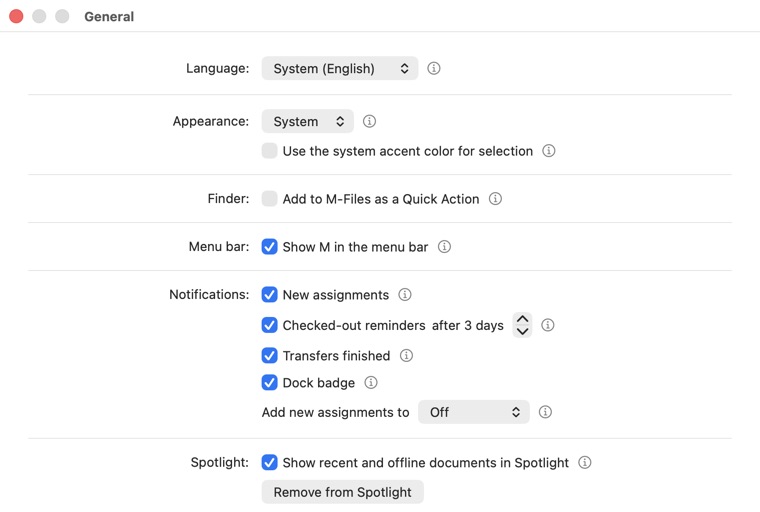
- New assignments: a notification for every new assignment, with Open and Mark complete. M-Client checks for new assignments every minute.
- Checked-out reminders … after N days: a reminder for documents you keep checked out longer than the number of days you choose, from 1 to 30. M-Client reminds you at most once a day per document.
- Transfers finished: long downloads and uploads, and the update of your offline documents, when they finish while you work in another app.
- Dock badge: the number of your open assignments on the M-Client icon in the Dock.
- Add new assignments to: Off, Calendar or Reminders. New assignments with a deadline are added there by themselves. See Add deadlines to Calendar and Reminders.
The first time, macOS asks whether M-Client may send notifications. Banners, sounds and Focus are set in System Settings ▸ Notifications ▸ M-Client. Notifications arrive while M-Client is running.
The Dock menu
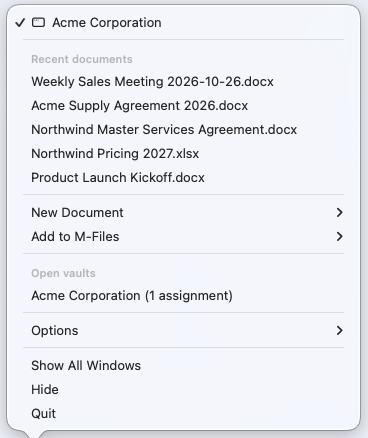
Right-click the M-Client icon in the Dock:
- Recent documents: the recent items of your open vaults. Choose one to open it.
- New Document and Add to M-Files, each with your saved connections. Add to M-Files asks you to pick files, then opens the metadata card.
- Open vaults: your open vault windows, with the number of assignments next to a vault that has any. Choose one to bring its window to the front.
When no vault is open, the menu lists your Document vaults to open instead. When M-Client is locked, it offers only Unlock.
Drop files on the Dock icon
Drop files on the M-Client icon to add them to M-Files, like Add to M-Files in Finder. With one saved connection the metadata card opens at once; with several, pick the vault first. Folders are left out.