
Customize the command bar
The command bar above the listing is the same as in M-Files Web: Create, the commands for the selected objects and the ⋮ menu. You can arrange it like the toolbar of any Mac app.
- Right-click the command bar and choose Customize Toolbar….
- Drag items out of the bar to hide them, drag them in to show them, and drag them along the bar to change their order.
- Choose Icon and Text, Icon Only or Text Only next to Show, then click Done.
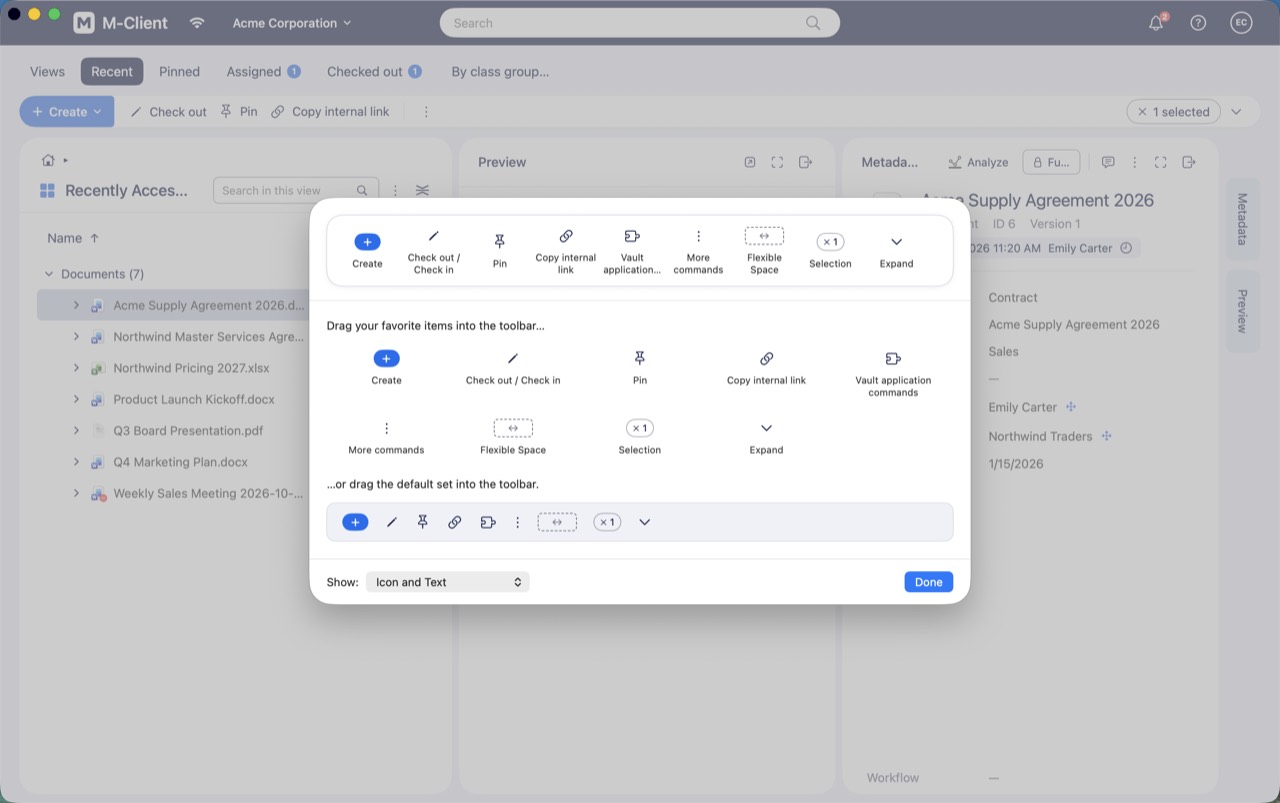
These items can be arranged: Create, Check out / Check in, Pin, Copy internal link, the commands of your vault applications, More commands (⋮), a flexible space, the selection count and the expand chevron. The ⋮ menu can move but always stays in the bar.
Commands keep their own rules: a command that M-Files Web shows only for some selections, such as Check in, appears in the bar only for those selections. To go back to the bar of M-Files Web, drag the default set from the bottom of the customize sheet into the bar.