
Connect to your first vault
M-Client keeps a list of vault connections, like the Document Vault Connections of the M-Files desktop client on Windows.
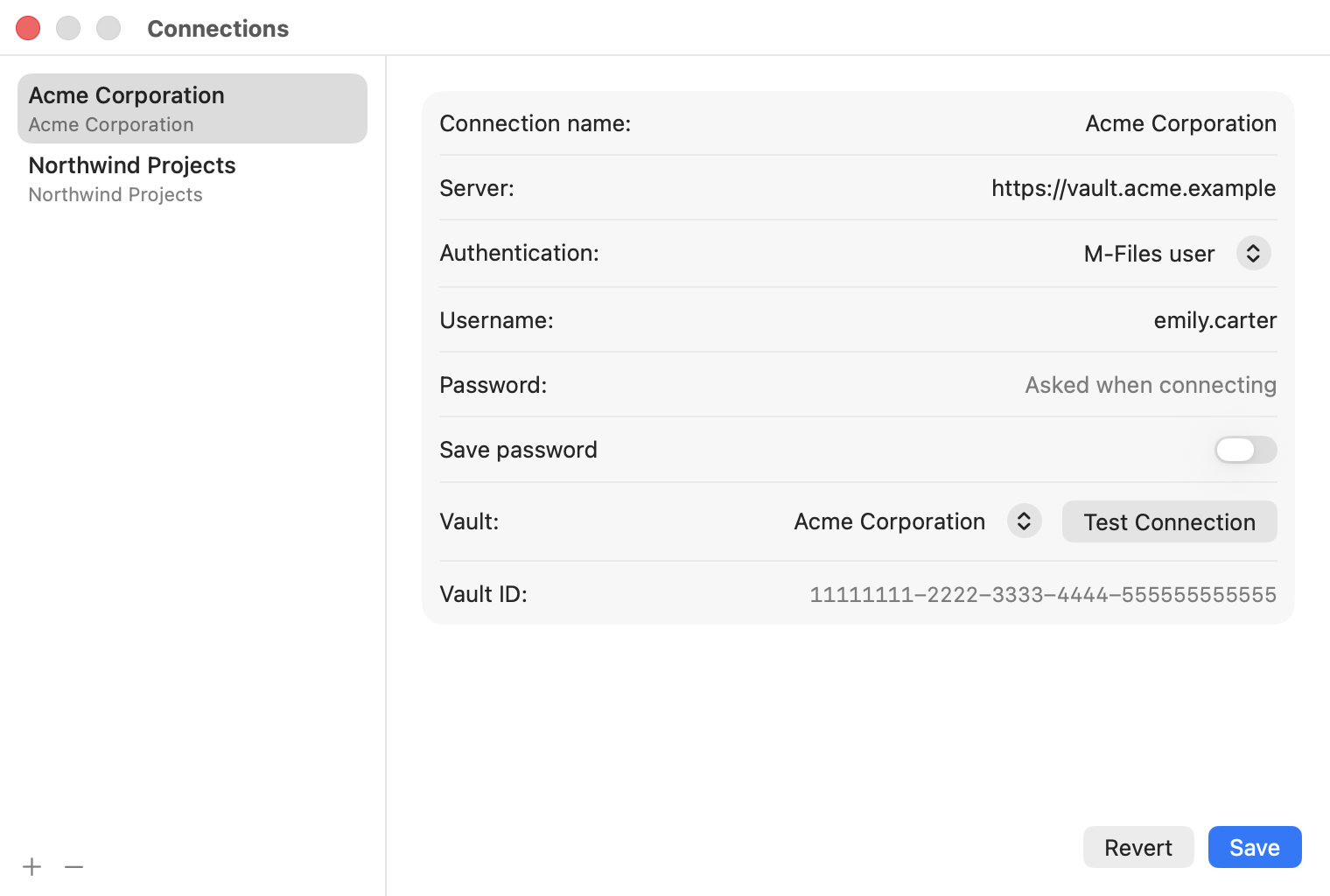
- Choose M-Client ▸ Settings… (⌘,) and open Connections.
- Click + and give the connection a name, for example Acme Documents. The name also appears as a location in Finder.
- Enter the server address, the same address you use for M-Files Web, for example
https://mfiles.acme.com. - Choose how you sign in: M-Files user or Windows user. For a Windows user, enter the domain too.
- Enter your user name. Turn on Save password to store the password in your Mac's Keychain; otherwise M-Client asks for it when you connect.
- Click Test Connection. M-Client signs in and lists the vaults you can open. Pick one and click Save.
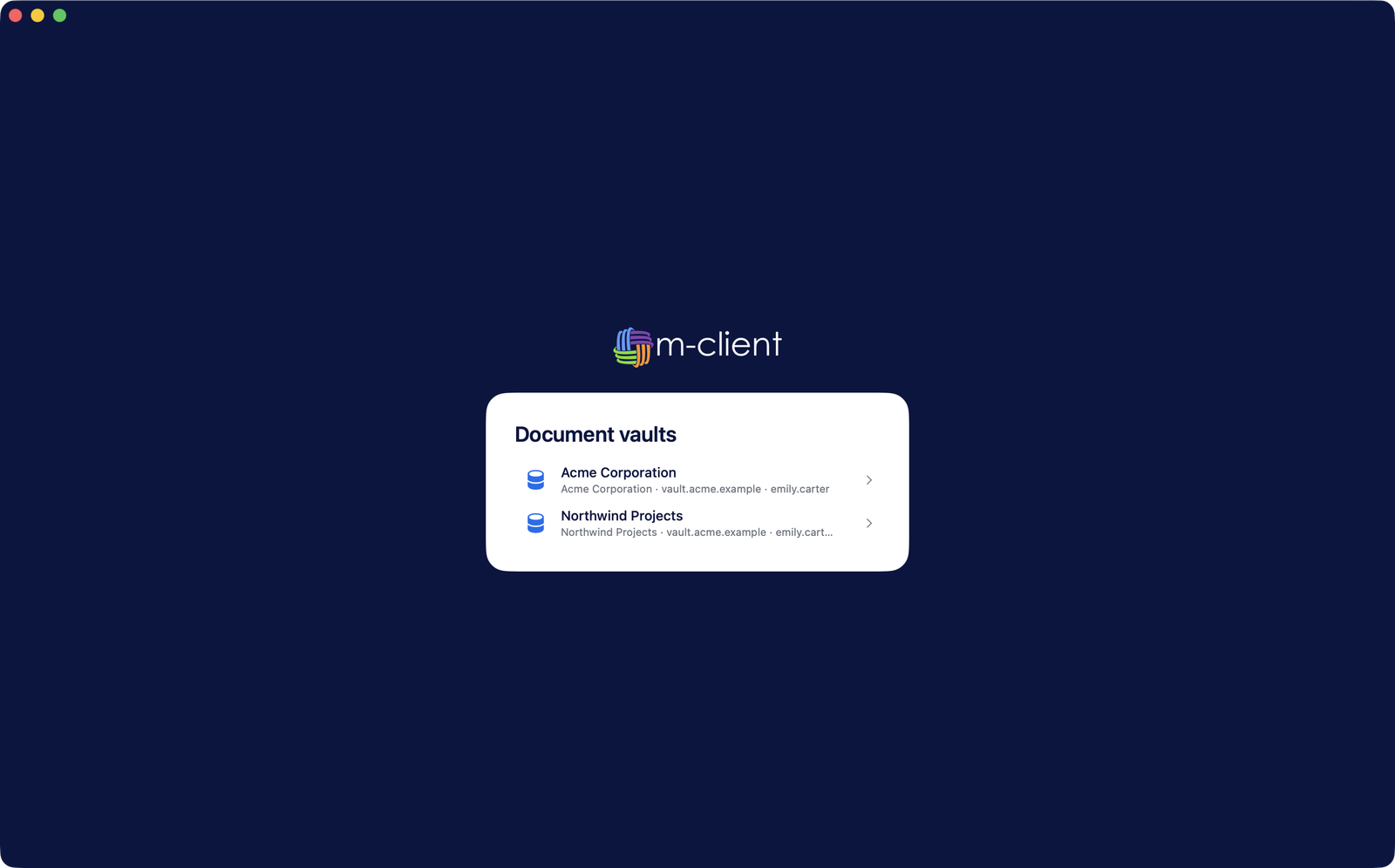
The start screen now lists your connection. Click it to open the vault. With a saved password M-Client opens it straight away; otherwise it asks for your password.
Vaults that are open when you quit M-Client open again at the next launch.