
Sign in with Microsoft (single sign-on)
If your M-Files server signs users in with their Microsoft work account (Microsoft Entra ID, OAuth 2.0), M-Client can use the same sign-in. You use your Microsoft account and its password, and your company's multi-factor sign-in, instead of an M-Files password.
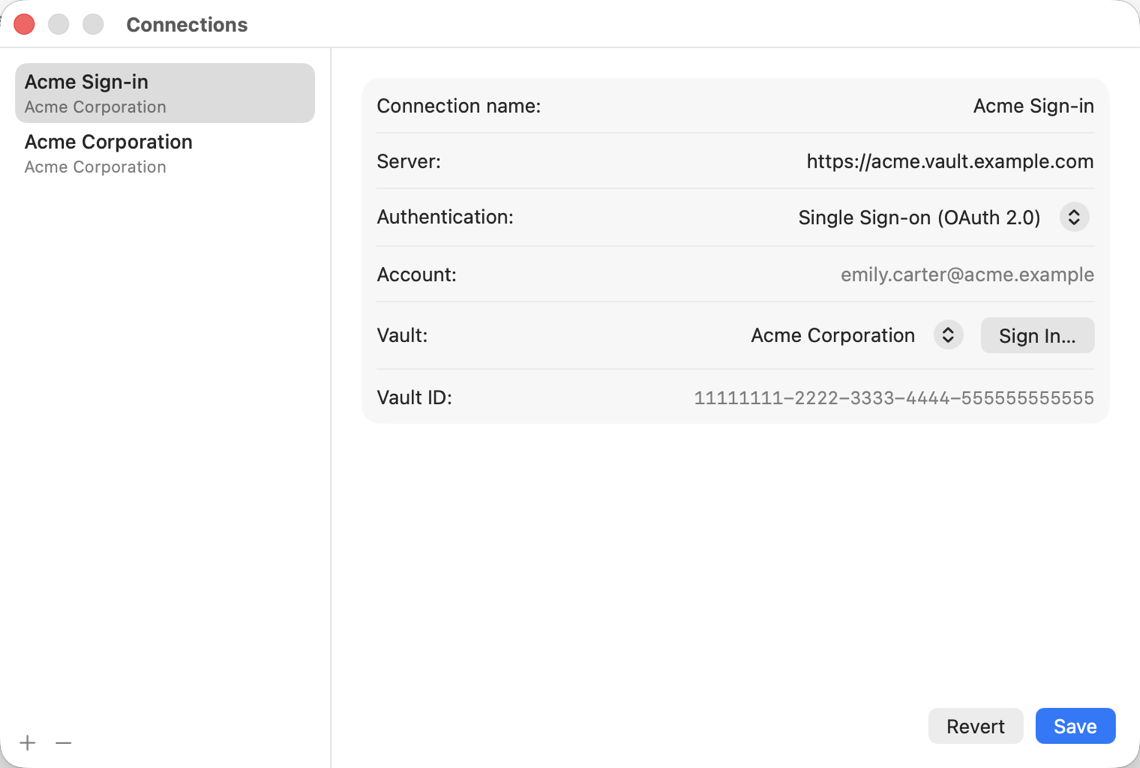
- Open M-Client ▸ Settings… (⌘,) ▸ Connections, and add a connection with + or select one.
- Enter the server address. Under Authentication, M-Client lists the sign-in methods your server offers, next to M-Files user and Windows user.
- Choose the single sign-on method, for example Single Sign-on (OAuth 2.0). Its name comes from your server. Click Sign In….
- The Microsoft sign-in page opens in its own window. Sign in as usual.
- Pick the vault under Vault: and click Save.
M-Client never sees your Microsoft password: you type it on Microsoft's own page, and M-Client receives only the sign-in from your M-Files server.
M-Client supports Microsoft Entra ID sign-in (OAuth 2.0). SAML sign-in methods appear in the list, marked as not supported yet. Ask your M-Files administrator which method your server uses.