
Open M-Files links from your browser in M-Client
An M-Files link, like https://mfiles.example.com/link/…/show?object=…, first opens a small page on your M-Files server. On Windows that page asks whether to open the link in M-Files Desktop or in M-Files Web, and can remember the answer with Save my preference. On a Mac the page never asks: there is no M-Files Desktop for macOS, so it always opens M-Files Web.
Once M-Files Desktop is saved as the preference in your browser, M-Files links open straight in M-Client. To save it, you show the page your browser as a Windows browser once. Nothing is installed: you use M-Files' own page and its own checkbox, and your browser goes back to normal right after.
Before you start
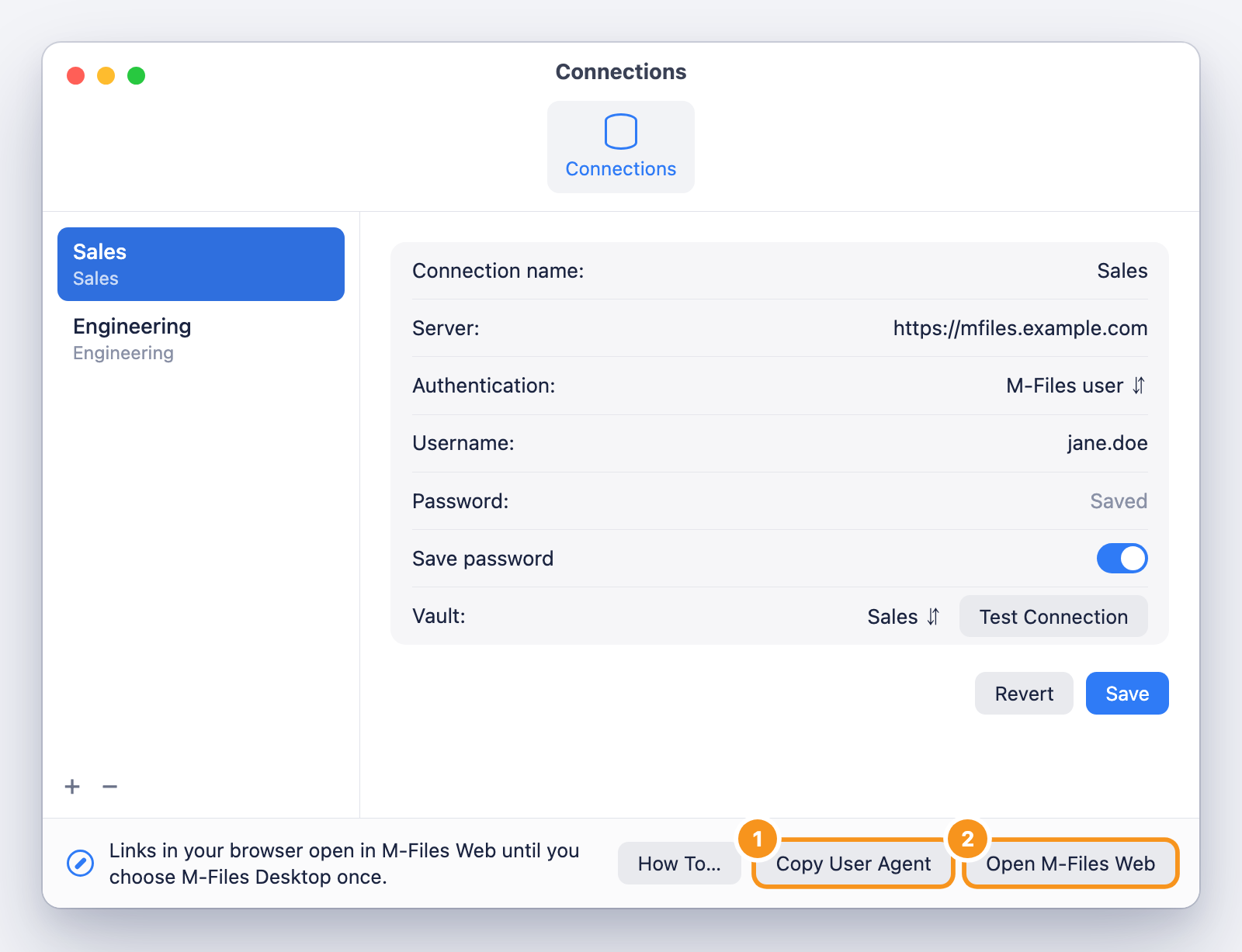
M-Client must be the app that opens M-Files links on your Mac. Open M-Client ▸ Settings… (⌘,) ▸ Connections. If the bar at the bottom shows Make M-Client Default, click it and confirm in the macOS dialog.
The bar then reads Links in your browser open in M-Files Web until you choose M-Files Desktop once, with three buttons.
Save M-Files Desktop as your preference in Chrome
- In M-Client, click Copy User Agent. This copies the identification text of a Windows browser.
- Click Open M-Files Web. In that Chrome tab, choose View ▸ Developer ▸ Developer Tools (⌥⌘I). Press ⇧⌘P, type Show Network conditions and press Return. The Network conditions panel opens.
- Under User agent, untick Use browser default.
- Click the text field below Custom…, paste (⌘V) and press Return.
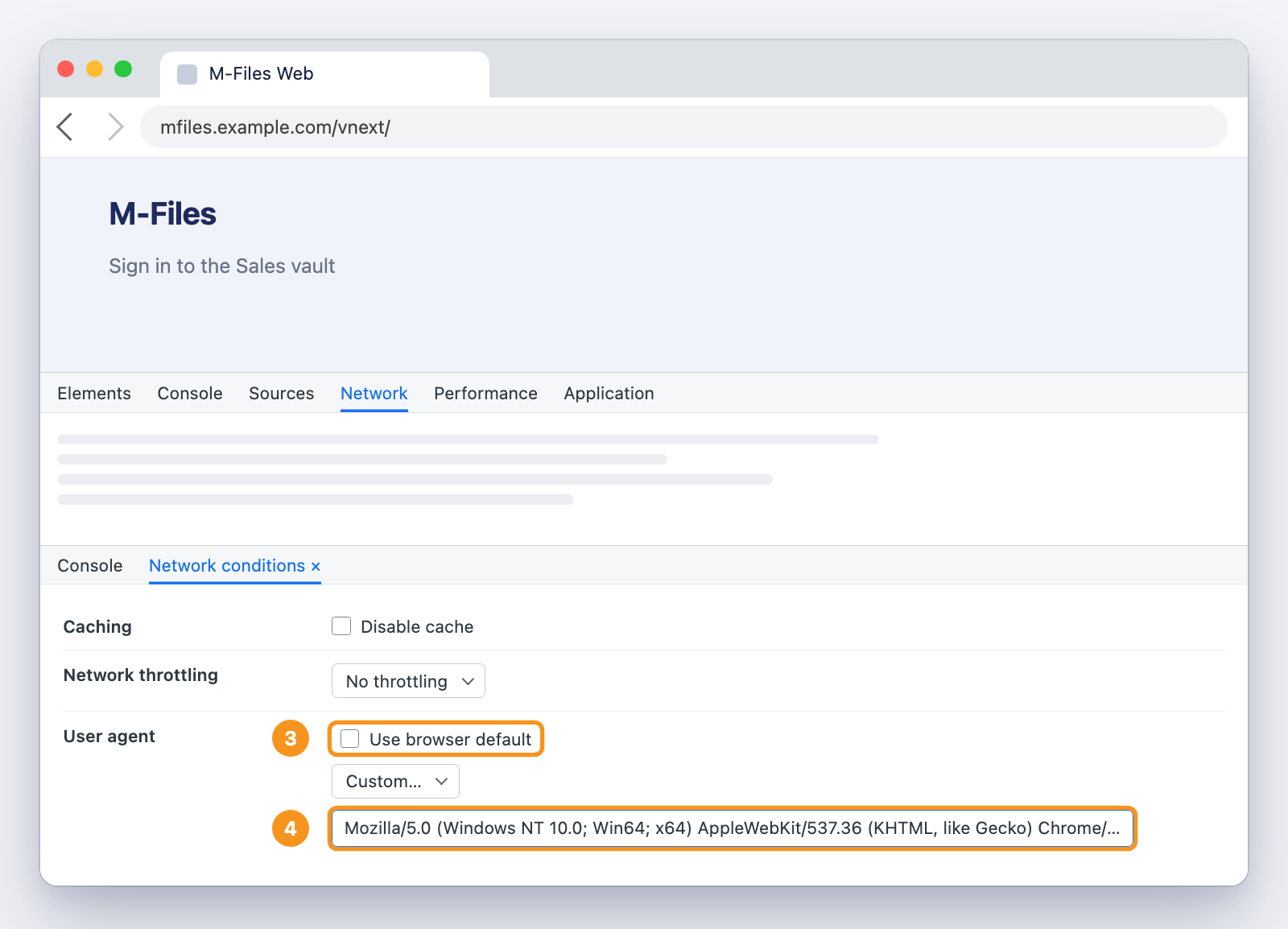
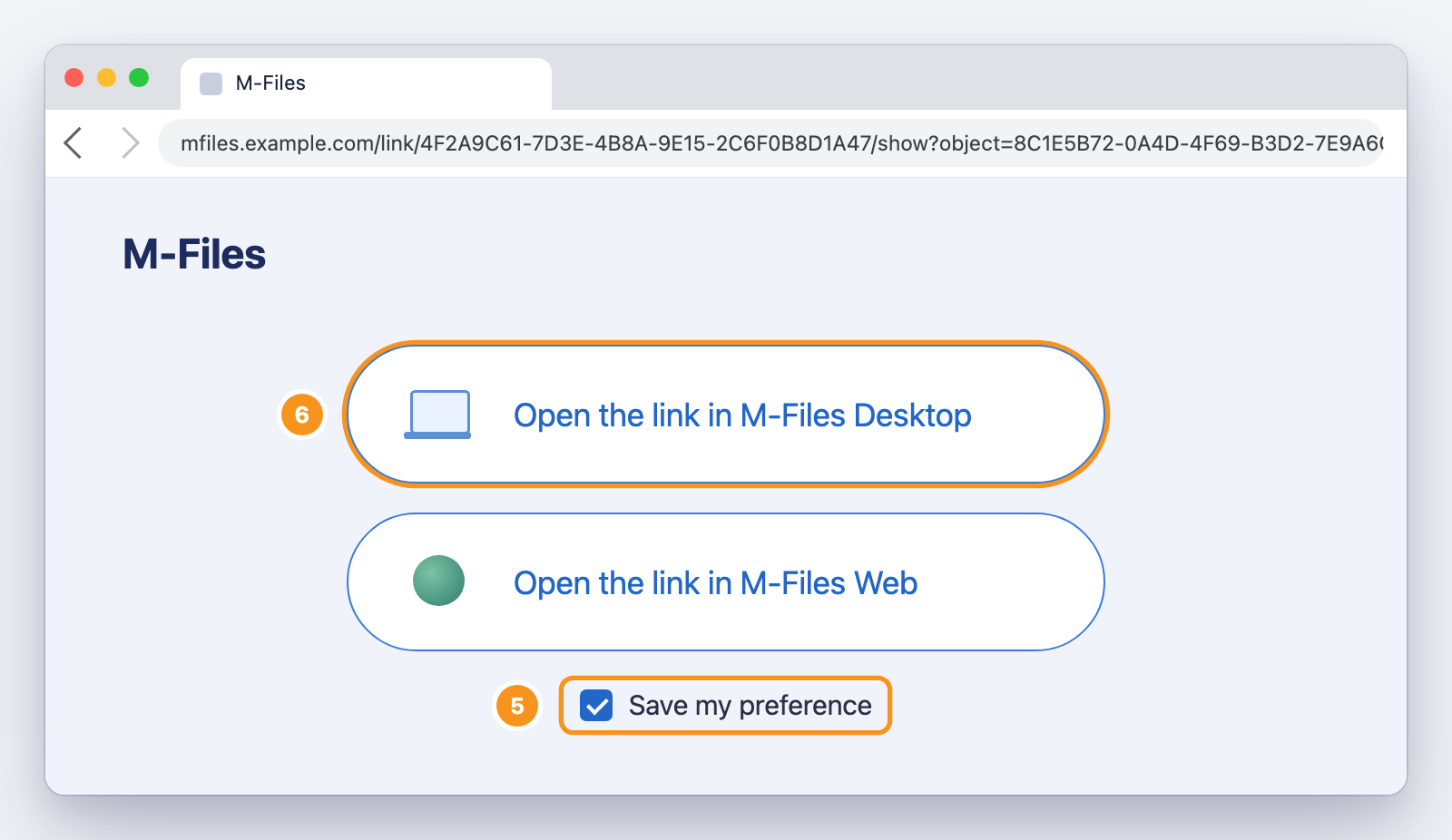
- In the same tab, open any M-Files document link: one from an e-mail, or one you copy with Copy internal link in M-Client. The page now shows two buttons. Close Developer Tools (⌥⌘I): Chrome is back to normal and the page stays. Tick Save my preference.
- Click Open the link in M-Files Desktop.
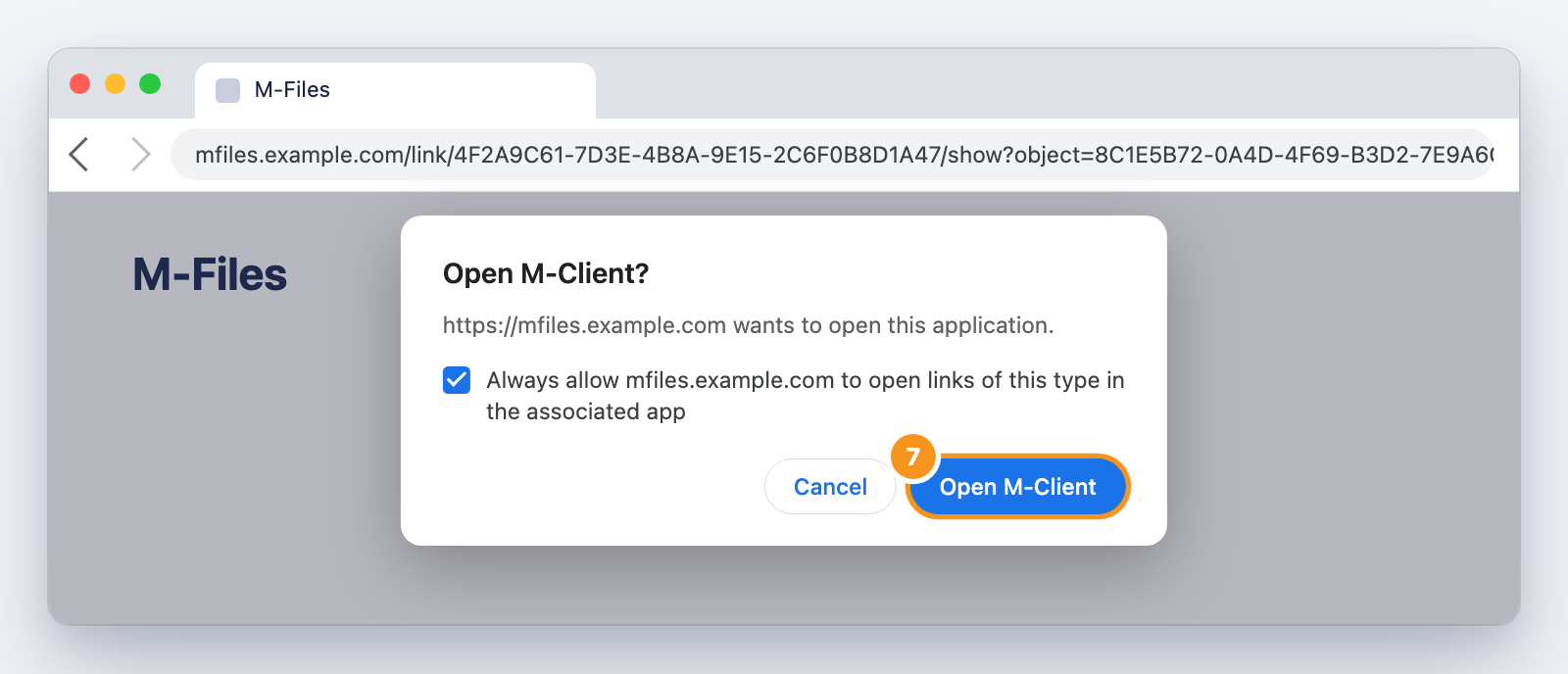
- Chrome asks Open M-Client?. Tick Always allow … to open links of this type in the associated app so Chrome does not ask again, and click Open M-Client.
M-Client opens the document, with its preview and metadata card.
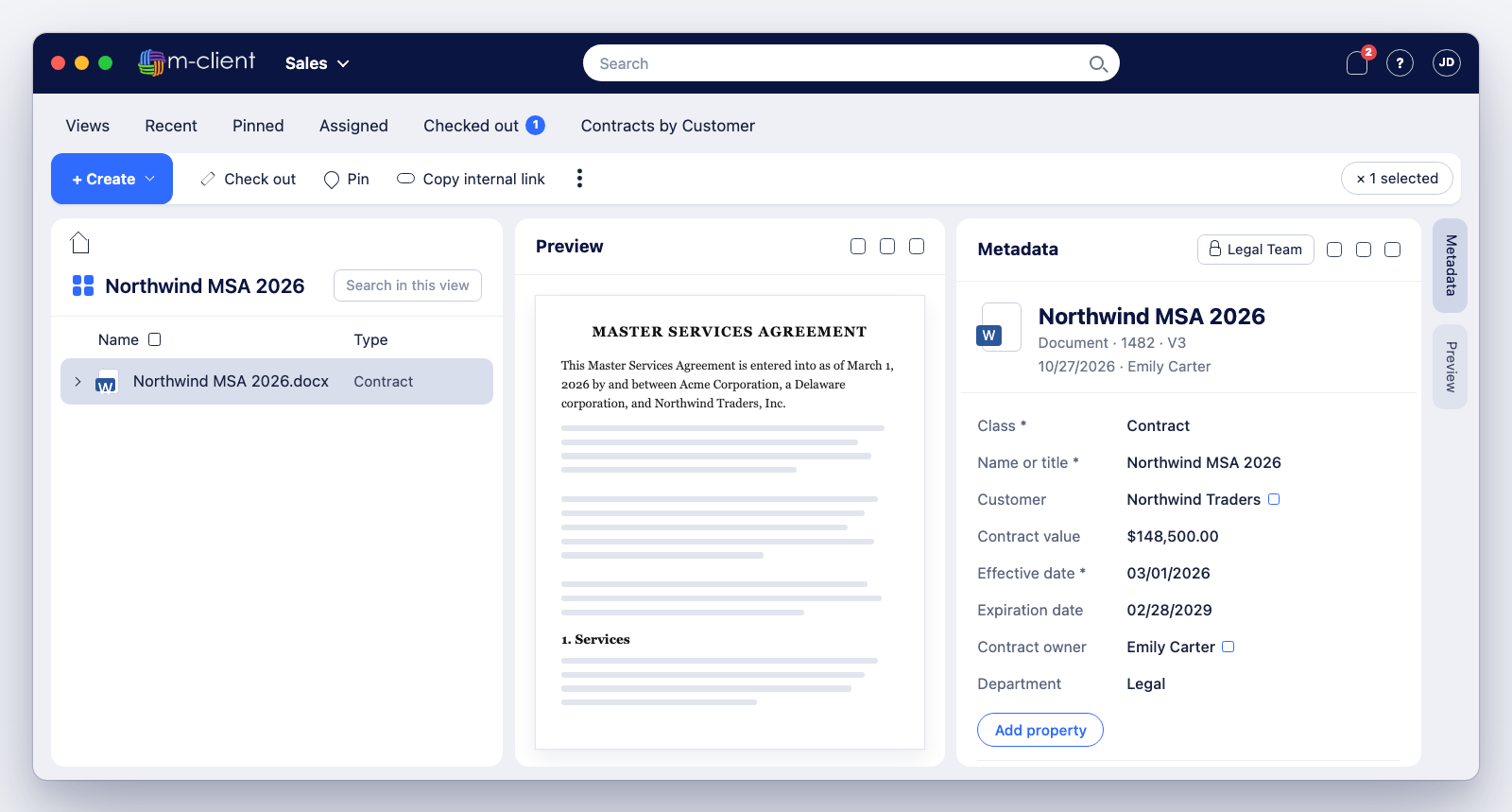
From now on, M-Files links you click in this browser open in M-Client. The M-Files page briefly shows Opening M-Files Desktop…, with an Open in M-Files Web link for the times you want the web, and Change my preference to undo the setting.
Save M-Files Desktop as your preference in Safari
Safari can show itself as a Windows browser on its own, so you do not need Copy User Agent here. Changing the user agent reloads the page in Safari, so switch it back only at the end.
- Once: choose Safari ▸ Settings… ▸ Advanced and tick Show features for web developers. Safari adds the Develop menu.
- Open an M-Files document link in Safari.
- Choose Develop ▸ User Agent ▸ Microsoft Edge — Windows. Safari reloads the page, which now shows the two buttons and Save my preference.
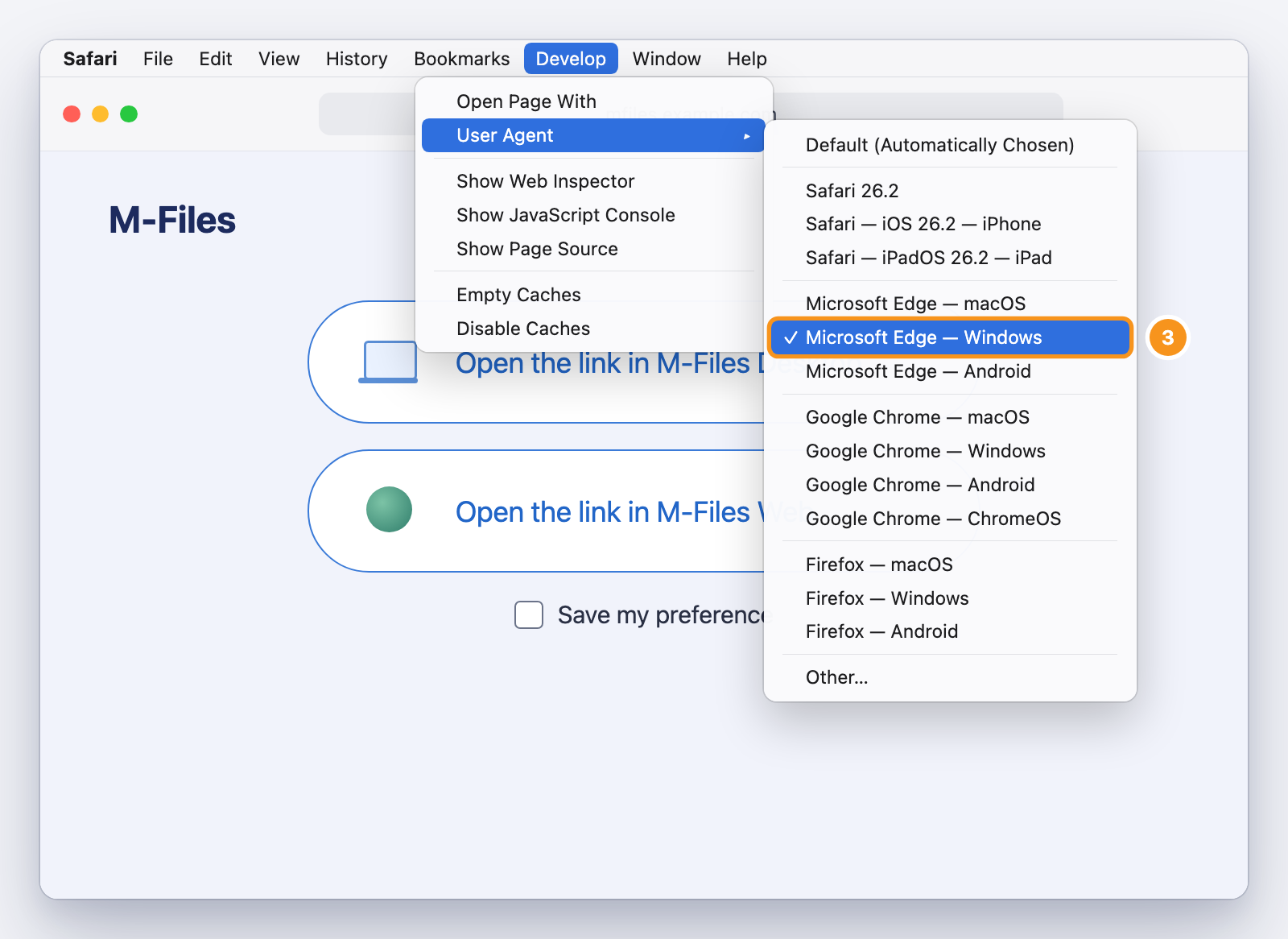
- Tick Save my preference and click Open the link in M-Files Desktop.
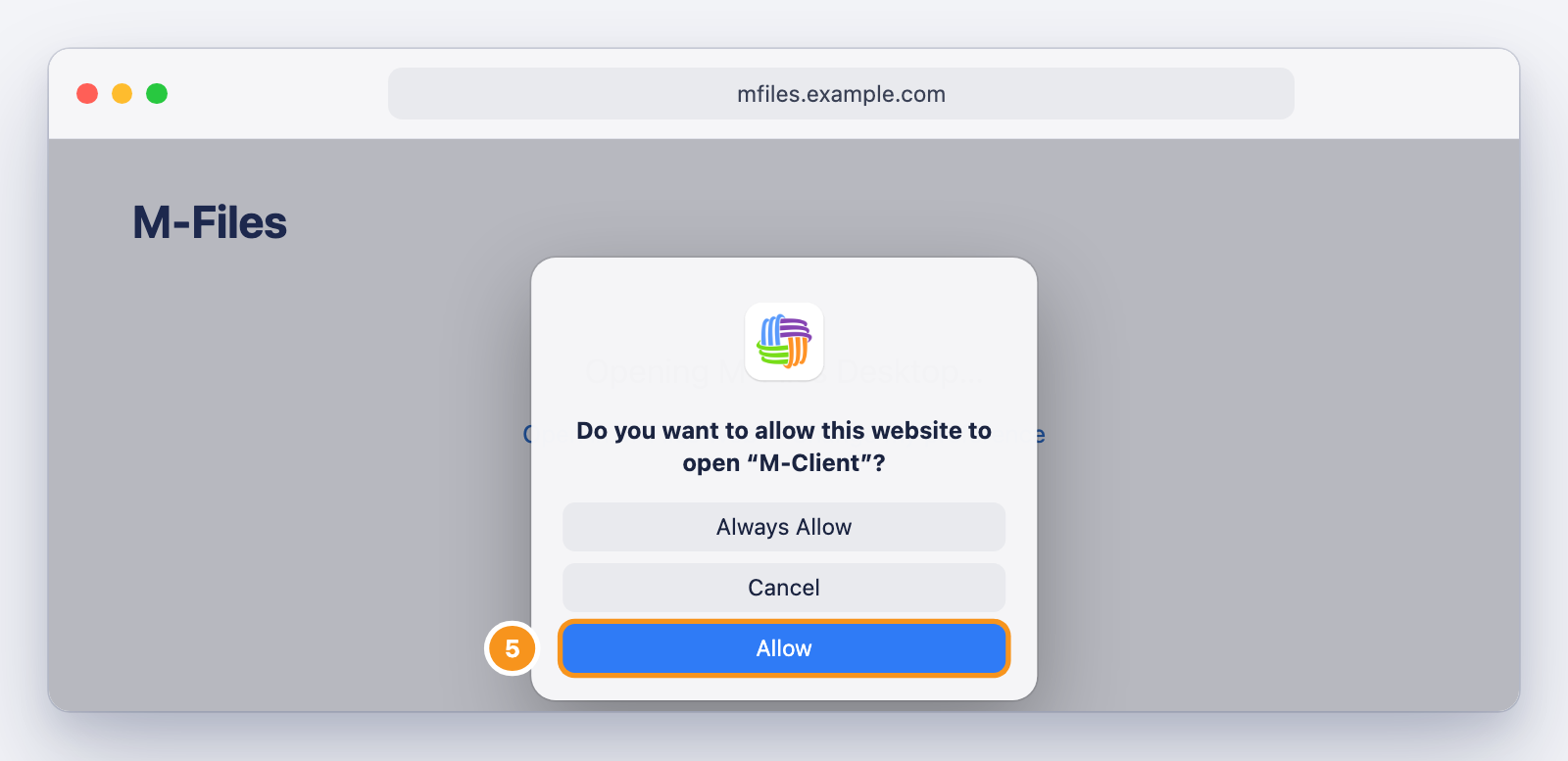
- Safari asks Do you want to allow this website to open “M-Client”?. Click Allow, or Always Allow so Safari does not ask again. M-Client opens the document.
- Choose Develop ▸ User Agent ▸ Default (Automatically Chosen). Safari is back to normal, and M-Files links now open in M-Client.
If it does not work
- Links still open M-Files Web: the preference was saved in another browser or profile, or it was cleared. Repeat the steps in the browser you use.
- The browser does not ask to open M-Client, or nothing opens: check that M-Client is the default app for M-Files links (see Before you start).
- The page still opens M-Files Web right away while you set it up: in Chrome, make sure the user agent was pasted and Return pressed before you opened the link, in the same tab. In Safari, check that Microsoft Edge — Windows is ticked in Develop ▸ User Agent.