
Lock M-Client with Touch ID
Saved passwords and the Microsoft sign-in open your vaults without asking. If you leave your Mac unlocked, anyone at it could open them too. The M-Client lock asks for Touch ID or your Mac password first. Your Mac's own screen lock still matters: the M-Client lock protects your vaults on top of it.
Turn on the lock
- Open M-Client ▸ Settings… (⌘,) ▸ Security.
- Next to Ask for Touch ID or the Mac password:, choose when M-Client asks:
- Never, the default.
- When M-Client starts.
- After the Mac is locked or asleep.
- After M-Client isn't used for a while, then choose 5, 15 or 60 minutes next to Not used for:. This option also locks M-Client when your Mac locks.
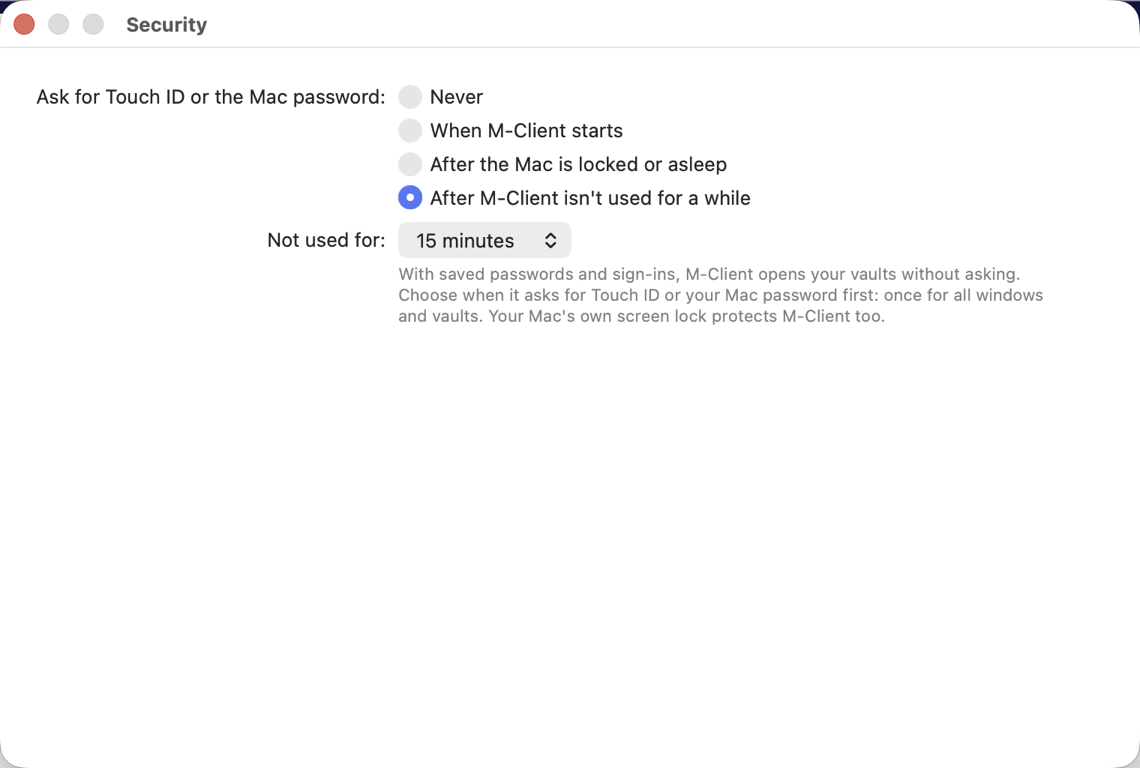
Changing this setting asks for Touch ID first, so someone at your unlocked Mac cannot turn the lock off.
While M-Client is locked
- Every M-Client window shows M-Client is locked with an Unlock button: the vault windows, metadata cards, the card windows of Add to M-Files in Finder, and Settings.
- No vault connects.
- The menu bar offers only Hide M-Client and Quit M-Client, and the M menu shows only M-Client is locked and Unlock.
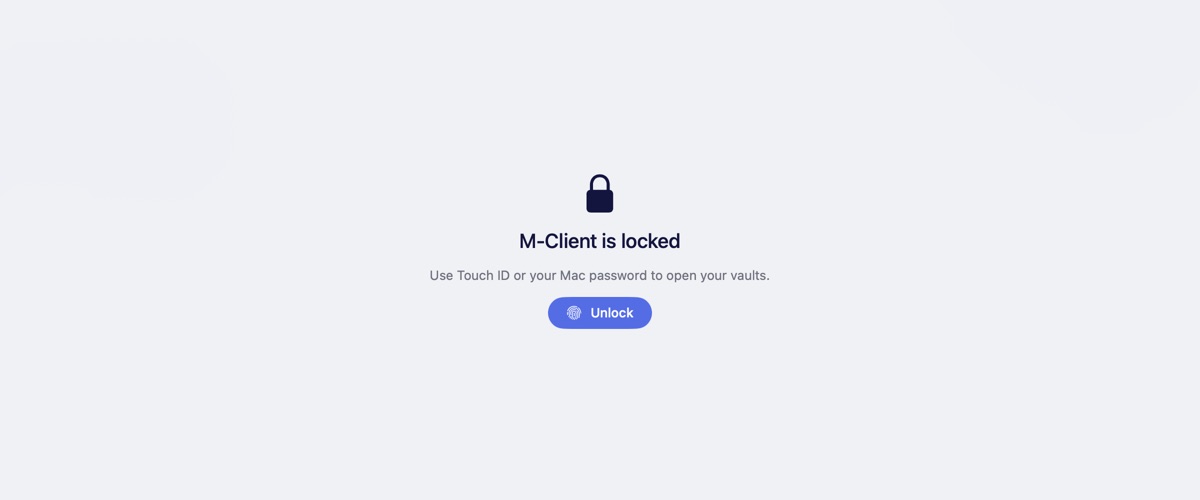
Unlock
When M-Client starts locked, it asks for Touch ID by itself. Later, it asks when you click Unlock or come back to M-Client. One Touch ID unlocks all windows and vaults. On a Mac without Touch ID, macOS asks for your Mac password.